前言:在使用LeafLet写离线地图时,需要将Nginx作为LeafLet的代理,实现内网访问外网地图瓦片,下面是将Nginx添加为Windows服务。
1、下载安装Nginx
官网:http://nginx.org/en/download.html
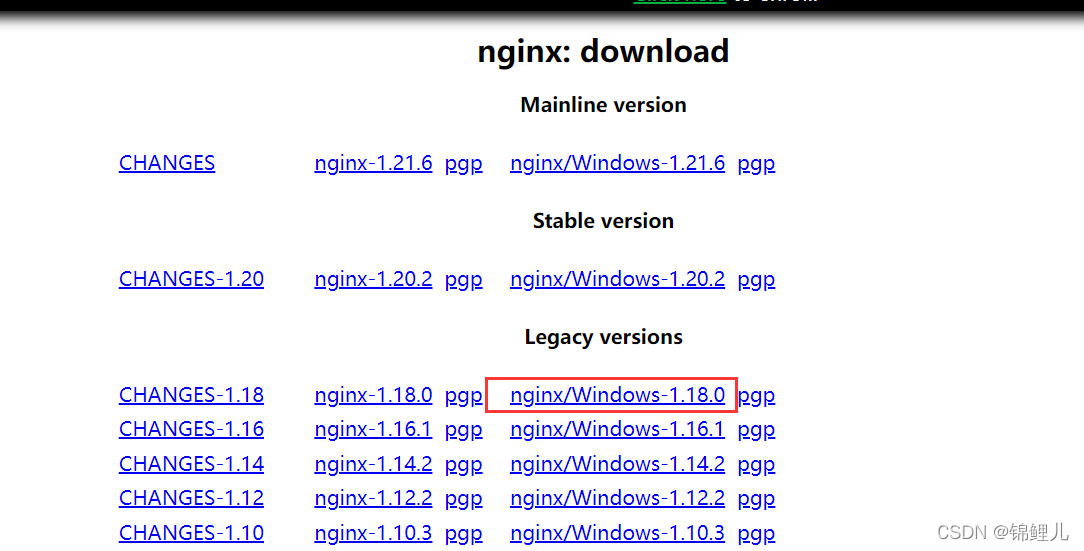
注意:我是将Nginx安装到了D盘,所以后面的文件修改时注意自己的路径问题。
2、添加服务
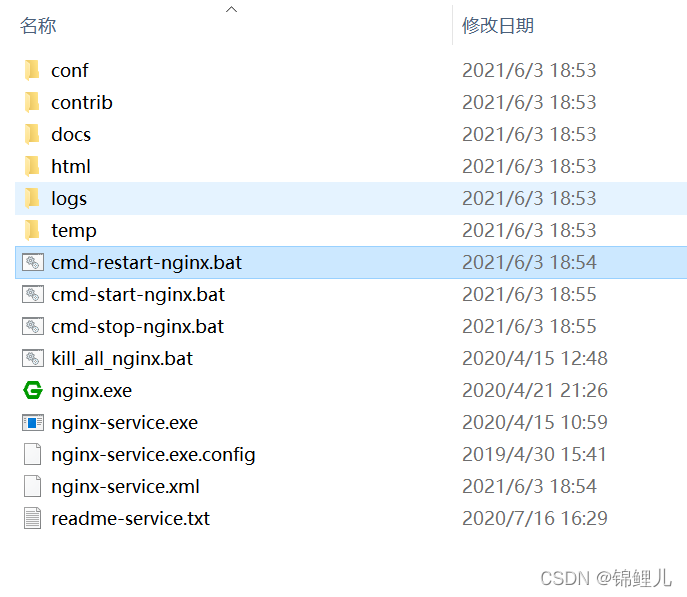
nginx-service.xml、cmd-restart-nginx.bat、cmd-start-nginx.bat、cmd-stop-nginx.bat
nginx-service.xml内容:
|
1 2 3 4 5 6 7 8 9 10 11 12 13 14 15 16 17 18 19 20 |
<service> <id>nginx180</id> <name>Nginx Service 1.8.0</name> <description>High Performance Nginx Service</description> <logpath>D:\nginx-1.18.0\logs</logpath> <log mode="roll-by-size"> <sizeThreshold>10240</sizeThreshold> <keepFiles>8</keepFiles> </log> <!-- OPTION: stopparentprocessfirst If set, WinSW will terminate the parent process before stopping the children. Default value: false --> <stopparentprocessfirst>true</stopparentprocessfirst> <executable>D:\nginx-1.18.0\nginx.exe</executable> <startarguments>-p D:\nginx-1.18.0</startarguments> <stopexecutable>D:\nginx-1.18.0\nginx.exe -s stop</stopexecutable> <stoparguments>-p D:\nginx-1.18.0</stoparguments> </service> |
cmd-restart-nginx.bat内容:
|
1 2 3 4 5 |
cd D:\nginx-1.18.0 nginx-service.exe stop > nul taskkill /f /t /im nginx.exe nginx-service.exe start > nul pause > nul |
cmd-start-nginx.bat文件内容:
|
1 2 3 |
cd D:\nginx-1.18.0 nginx-service.exe start >nul pause > nul |
cmd-stop-nginx.bat文件内容:
|
1 2 3 4 |
cd D:\nginx-1.18.0 nginx-service.exe stop > nul taskkill /f /t /im nginx.exe pause > nul |
3、安装Nginx为Windows服务
进入Nginx的安装路径
|
1 |
D:\nginx-1.18.0 >nginx-service.exe install |
4、启动Nginx服务
控制面板–>管理工具–>服务–>找到Nginx Service 1.8.0服务–>启动
现在已经将Nginx添加为Windows服务了,可以自行测试。需要源文件的小伙伴可以私信我呀~