

git config怎么用?常用配置命令及添加删除配置项的方法

一、config文件分类 Git中有三层config文件:系统、全局、本地 查看不同级别的配置文件: 1 2 3 4 5 6 7 8 #查看系统config git config --system --list #查看当前用户(global)配置 git config --global --list #查看
一、config文件分类Git中有三层config文件:系统、全局、本地 查看不同级别的配置文件:
位于git项目目录中的.git/config:适用于特定git项目的配置。–local当前项目
Git 使用一系列配置文件来保存你自定义的行为。 它首先会查找系统级的 /etc/gitconfig 文件,该文件含有系统里每位用户及他们所拥有的仓库的配置值。 如果你传递 --system 选项给 git config,它就会读写该文件。 接下来 Git 会查找每个用户的 ~/.gitconfig 文件(或者 ~/.config/git/config 文件)。 你可以传递 --global 选项让 Git 读写该文件。 最后 Git 会查找你正在操作的仓库所对应的 Git 目录下的配置文件(.git/config)。 这个文件中的值只对该仓库有效,它对应于向 git config 传递 --local 选项。 以上三个层次中每层的配置(系统、全局、本地)都会覆盖掉上一层次的配置,所以 .git/config 中的值会覆盖掉 /etc/gitconfig 中所对应的值。
二、设置用户名与邮箱(用户标识,必要)1、当你安装Git后首先要做的事情是设置你的用户名称和e-mail地址。 这是非常重要的,因为每次Git提交都会使用该信息。它被永远的嵌入到了你的提交中:
只需要做一次这个设置,如果你传递了–global 选项,因为Git将总是会使用该信息来处理你在系统中所做的一切操作。 如果你希望在一个特定的项目中使用不同的名称或e-mail地址,你可以在该项目中运行该命令而不要–global选项。 总之–global为全局配置,不加为某个项目的特定配置。 修改如上图2所示; 2、添加或删除配置项 1)、添加配置项
2)、删除配置项
3、更多配置项
4、所有config命令参数
三、解决git每次提交和拉取代码需要输入用户名和密码问题输入以下命令行:
再输入一次正确的用户名和密码,就可以了 |
您可能感兴趣的文章 :
- GIT invalid path报错问题及解决(GIT PULL拉取失败)
- git重命名文件和文件夹实现方式
- Git error invalid path报错问题及解决方式
- GitHub Copilot使用完全指南:安装、配置与高效使用技巧介绍
- git stash命令怎么用?临时保存代码改动解决分支切换难题
- Linux系统下git命令无法tab自动补全的解决方法
- git clone出现unable to access‘http:/...问题及解决过程
- Git之reset、restore、revert与reflog的使用
- git commit时eslint报错怎么忽略?
- git clone报错128怎么解决?凭据管理器添加方法亲测有效

-
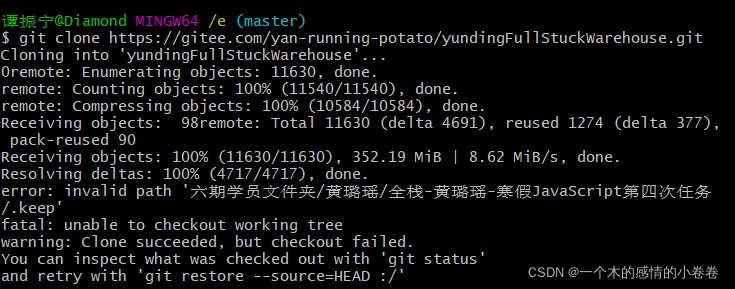
GIT invalid path报错问题及解决(GIT PULL拉取失败)
记一次GIT仓库无法拉取的处理方案 事件起因 GIT仓库使用git pull命令无法拉取 报错(GITLENS插件) git pull --tags origin dev From https://gitee.com/yan-runn -
git config怎么用?常用配置命令及添加删除配置项
一、config文件分类 Git中有三层config文件:系统、全局、本地 查看不同级别的配置文件: 1 2 3 4 5 6 7 8 #查看系统config git config --system --list #查 -
git重命名文件和文件夹实现方式
前情提要 想修改一下我的某个文件/文件夹名字,发现一改,怎么这个文件绿色的 就没了???改回来之后, 又回来了!!!咋回事呢? -
Git error invalid path报错问题及解决方式
问题情况 情形 1:使用git clone后,拉取的文件夹中只有.git文件夹,其他内容均没有拉下来。使用git status -s命令,可以看到所有文件都显示已 -
flutter常用组件详细介绍、屏幕适配方案、常用目
一、常用组件 1.基础组件 组件 说明 示例 Text 显示文本 Text(Hello Flutter, style: TextStyle(fontSize: 20)) Image 显示图片 Image.network(https://example.com/ima -
GitHub Copilot使用完全指南:安装、配置与高效使用
一、为什么 Copilot 是 AI 编程的标准答案 在所有 AI 编程工具中,GitHub Copilot 是最接近标准答案的那个。它不是最强大的(Claude Code 在多文件 -
flutter常用组件详细介绍、屏幕适配方案、常用目
一、常用组件 1.基础组件 组件 说明 示例 Text 显示文本 Text(Hello Flutter, style: TextStyle(fontSize: 20)) Image 显示图片 Image.network(https://example.com/ima -
Linux系统下git命令无法tab自动补全的解决方法
git命令无法使用tab自动补全,例如git log --oneline 解决方式 确保Bash和Git已安装 1 2 git --version bash --version 如果未安装,则使用以下命令进行安



-
解决Git Bash中文乱码的问题
2022-04-23
-
webp格式图片显示异常分析及解决方案
2023-04-23
-
typescript 实现RabbitMQ死信队列和延迟队
2024-04-08
-
git clone如何解决Permission Denied(publick
2024-11-15
-
Win10环境下编译和运行 x264的详细过程
2022-10-16